
Build a Chrome Extension Prototype with Claude Code: Create a Least-Privilege Manifest V3 Reading Card from Acceptance Criteria
| Difficulty | Reading time | Last verified | Author |
|---|---|---|---|
| Intermediate | 18 minutes | 2026-07-11 | LearnPrompt Editorial Team |
Getting Claude Code to “make a Chrome extension” is not difficult. The real difficulty is that many people begin by writing the task like this:
帮我做一个网页信息收集扩展。That sentence will almost certainly send the engineering in the wrong direction. When the model sees “information collection,” it can easily add tabs, <all_urls>, an options page, background polling, sync storage, or even an external API. The problem is not that it cannot write code; it is that you have not first defined what minimum success means, nor which permissions must not be requested.
This article is not about “whether Claude Code can write Manifest V3.” It addresses a more important question:
How do you first write decidable acceptance criteria, then have Claude Code generate a loadable, verifiable, least-privilege Chrome extension prototype?
The Showcase in this article does not build an “all-purpose web clipper.” It builds a deliberately focused prototype that still covers the key mechanisms: a reading card for the current page.
- The user explicitly triggers one capture.
- The extension reads the title, URL, and optional selected text from the current page.
- The result is saved to
chrome.storage.local. - The popup only displays the most recent successful result and the most recent run status.
- The core extension requests only
activeTab,scripting, andstorage.
What you will be able to do after reading
Section titled “What you will be able to do after reading”After reading, you should be able to independently do four things:
- Rewrite “make a Chrome extension” as a contract with permission boundaries, failure modes, and verification commands.
- Use Claude Code to generate a minimal set of Manifest V3 files within that contract, rather than letting it expand the scope freely.
- Clearly explain why this exercise needs only
activeTab,scripting, andstorage, and whytabsand<all_urls>are over-privileged here. - Distinguish among three kinds of evidence: what has been mechanically run, what still requires manual acceptance in
chrome://extensions, and what must never be presented as “verified.”
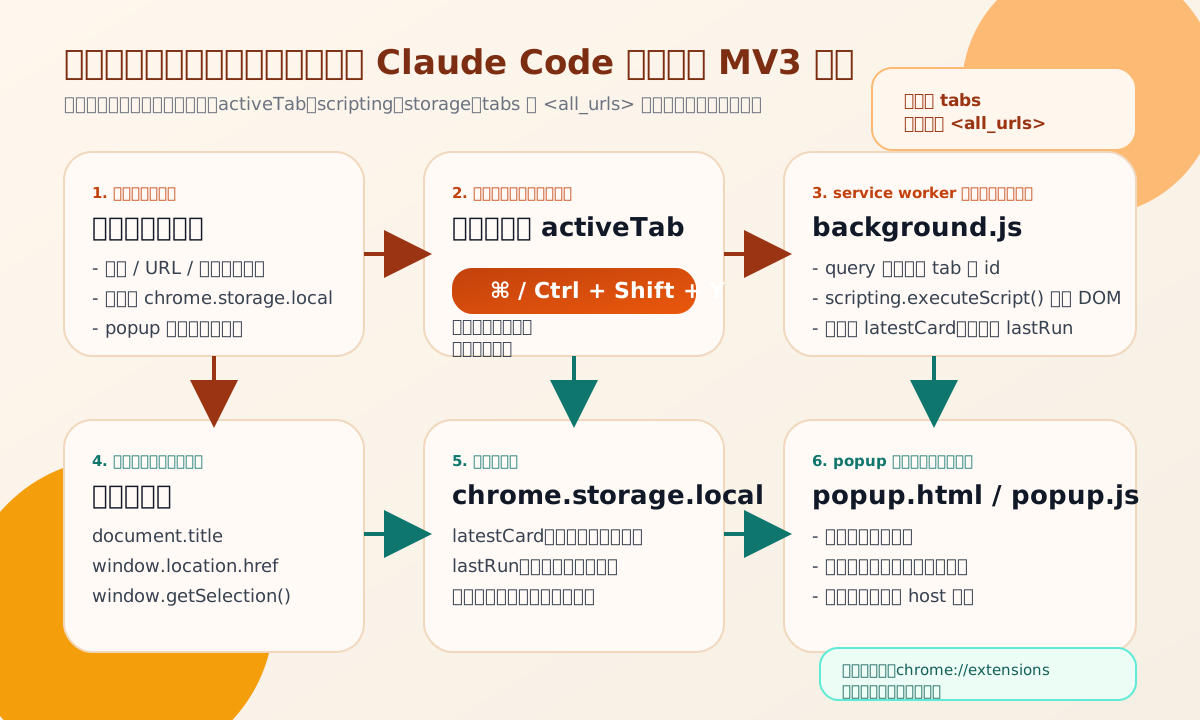 Caption: This flow deliberately maps each permission to an action: a user shortcut triggers
 activeTab; the service worker uses scripting.executeScript() to read data from the current page; the result is written to storage.local; and the popup only displays the most recent status. In this exercise, both tabs and <all_urls> are examples of over-privilege.
Write acceptance criteria as a contract before asking Claude which files to create
Section titled “Write acceptance criteria as a contract before asking Claude which files to create”If you want Claude Code to help you build an extension, the one thing you should not say in the first round is “generate a complete scaffold first.” That asks the model to make decisions at the wrong level. What you should freeze first are these six things:
| Question | This article’s answer |
|---|---|
| What to capture | The current page’s title, URL, and optional selected text |
| Where the result goes | chrome.storage.local |
| How the user triggers it | An explicit shortcut; no persistent background capture |
| What the popup does | Displays only the most recent successful result and run status |
| Permission ceiling | Allow only activeTab, scripting, and storage |
| How to prove it | Real-browser verification + deterministic checks + at least one failure or over-privilege negative case |
To compress this into a task card Claude Code can understand, write something like this:
goal: 做一个 Manifest V3 当前页阅读卡原型must_capture: - document.title - location.href - optional selected textstore: chrome.storage.localpopup: 只显示最近一次成功结果和最近一次运行状态permissions_allow: - activeTab - scripting - storagepermissions_forbid: - tabs - host_permissions - unlimitedStoragenegative_cases: - chrome://extensions 这类受限页必须显式失败 - 一个故意越权的 manifest 必须被检查器判定为 FAILverification: - Chrome for Testing 真实运行 fixture 页面 - popup 读到最近结果 - 失败时不覆盖上一次成功卡片The value of this card is not elegant formatting. It compresses “prototype success” into observable facts. Once these points are frozen, you will find that many “maybe we should add it” features automatically fall out of scope:
- No options page is needed.
- No sync storage is needed.
- No account system is needed.
- No persistent content-script injection is needed.
- No off-site API is needed.
That is what acceptance criteria do. They are not a project-management accessory; they are Claude Code’s boundary conditions.
The right way to begin with Claude Code: plan first, then implement
Section titled “The right way to begin with Claude Code: plan first, then implement”Claude Code’s official best practices are now very clear: when you are still uncertain about the approach, when multiple files are involved, or when you do not yet know the target repository well, separate research from implementation first. The permission-mode documentation also explains that plan mode lets Claude read files, run read-only commands, and write a plan without changing source files.
This exercise is especially well suited to that approach, because what you need to confirm first is not CSS, but:
- Exactly how many permissions the Manifest needs.
- Whether capture is triggered by the popup, a shortcut, or an action click.
- Whether a failure state should remain only in the console or be written to
storage.localso the popup can see it. - Whether real verification should run in branded Chrome, Chrome for Testing, or describe the two separately.
A safer two-stage start looks like this.
First stage: plan only:
claude --permission-mode planThen give it explicit questions:
先只读分析,不要改文件。
我要做一个 Chrome Manifest V3 当前页阅读卡原型。请先回答:1. 在不申请 tabs / host_permissions / unlimitedStorage 的前提下,最小文件结构是什么?2. 用 activeTab + scripting + storage 能否完成标题、URL、选中文本抓取?边界在哪里?3. 什么用户动作最适合作为 activeTab 的入口:popup、action click、还是快捷键?4. 受限页失败时,怎样让 popup 也能看到错误状态?5. 真实验证最小需要哪些 fixture、脚本和负例?
The goal of this step is not to have Claude demonstrate that “it knows many Chrome APIs.” It is to force it to narrow the design space first.
Second stage: implement:
claude --permission-mode acceptEditsThen freeze the scope as an implementation task:
只在当前文章的 showcase 目录内创建一个最小 MV3 原型。
必须满足:- 只能申请 activeTab、scripting、storage- service worker 接收显式用户动作后抓当前页标题、URL、可选选中文本- 结果写入 chrome.storage.local- popup 只显示最近一次成功结果和最近一次运行状态- 受限页失败时不能覆盖上一次成功结果- 提供 fixture、README、确定性检查、越权负例
禁止:- tabs- host_permissions- unlimitedStorage- 远程托管代码- 账号体系、同步存储、后台轮询
You will find that Claude Code’s strength in this kind of task is not “inventing the product on its own,” but quickly connecting the data flow once you have clearly written the boundaries.
Why this prototype needs only three permissions, not more
Section titled “Why this prototype needs only three permissions, not more”The most valuable lesson in this exercise is not JavaScript syntax, but the permission model.
activeTab: bind the permission to a user action
Section titled “activeTab: bind the permission to a user action”Chrome’s official definition of activeTab is a good fit for a current-page reading card: when a user invokes the extension, it gets temporary access to the current page; moreover, this permission does not trigger a permission warning. For a prototype that reads the page only when the user explicitly triggers it, this is the correct level of access.
It solves these problems:
- You do not need to pre-authorize every site.
- You do not need to declare
<all_urls>. - You do not need to misstate “I want to capture the current page now” as “I want to keep watching every page.”
It cannot solve:
- Automatic background inspection.
- Batch collection without a user action.
- Long-term access after leaving the current page.
So activeTab is not merely “safer”; it actually pushes the product shape back toward “one explicit action at a time.”
scripting: read from the page context instead of guessing from tab metadata
Section titled “scripting: read from the page context instead of guessing from tab metadata”This exercise needs more than a URL: it also needs the page title and current selection. That means you ultimately need to read document.title, window.location.href, and window.getSelection(). Chrome’s official MV3 approach is chrome.scripting.executeScript().
It matters because:
- You read the DOM state that the page itself sees, rather than guessing in the popup.
- The logic remains inside the extension package, complying with MV3’s restrictions on remotely hosted code.
- It turns “the current page” directly into one explicit injection, rather than a persistent content script.
storage: let the popup display rather than reason
Section titled “storage: let the popup display rather than reason”Many prototypes fail the first time not because they cannot capture data, but because captured data has no stable destination. The popup is a transient interface, and a service worker is not a persistent process in MV3. If you keep state only in memory, the result disappears when the user closes the popup or the worker sleeps.
The value of chrome.storage.local is:
- The most recent successful result has a stable home.
- The most recent failure status can also be retained.
- The popup can become a pure read interface, rather than “requesting permission again and recapturing the DOM” every time it opens.
That is the structure used in this article: capture logic in the service worker, result display in the popup.
Why tabs should not be requested here
Section titled “Why tabs should not be requested here”Chrome’s tabs documentation is clear: one key use of the tabs permission is to read sensitive properties on tabs.Tab, such as the title and URL. But this exercise deliberately does not take that path. The reason is not that “tabs is toxic,” but that it would weaken the teaching focus.
For a current-page reading card, we want readers to understand:
- The data truly comes from the current page DOM.
- The URL and title are part of the page context.
- First prove the need with the smallest mechanism, then decide whether larger permissions are necessary.
So not using tabs here is a focused choice that holds up both pedagogically and technically.
Showcase: what the current-page reading-card prototype actually looks like
Section titled “Showcase: what the current-page reading-card prototype actually looks like”The final real fixture is located at:
research/articles/chrome-extension-prototype/showcase/fixture/extension/The key files have only four roles:
| File | Purpose |
|---|---|
manifest.json | Freezes permissions, the popup entry point, the service worker, and the shortcut |
background.js | Responds to the shortcut, captures the current page, and writes to storage.local |
popup.html / popup.css | Displays the most recent successful result and most recent run status |
popup.js | Reads only from storage; it does not directly take current-page permission |
First, look at the most important manifest excerpt:
{ "manifest_version": 3, "permissions": ["activeTab", "scripting", "storage"], "background": { "service_worker": "background.js" }, "commands": { "capture-reading-card": { "suggested_key": { "default": "Ctrl+Shift+Y", "mac": "Command+Shift+Y" } } }, "action": { "default_popup": "popup.html" }}The most important point here is not whether you can memorize the fields, but the tradeoff it embodies:
- The capture action is performed by a shortcut, which aligns exactly with
activeTab. - The display action is performed by the popup, which only reads
storage.local. - The popup has no reason to declare additional site permissions.
The background capture logic is intentionally kept minimal as well:
chrome.commands.onCommand.addListener((command) => { if (command === "capture-reading-card") { void captureActiveTab(); }});captureActiveTab() does only three things:
- Finds the
tab.idof the currently active tab. - Uses
chrome.scripting.executeScript()to readtitle,url, andselectedTextin the current page. - On success, writes
latestCard; on failure, writeslastRun, and does not overwrite the previous successful card.
This is extremely important. Many tutorials leave failure states only in the console, so users see nothing when they open the popup. This article deliberately writes errors to storage.local, because that is real evidence visible to popup users.
The popup itself is kept as “dumb” as possible in return:
- It reads
latestCard. - It reads
lastRun. - It renders the success or failure state.
The benefit is that the popup no longer has to be coupled to “current-page permission.” It is simply a surface for observing results, not a permission center.
Real verification: what has been run, and what you still need to check in chrome://extensions
Section titled “Real verification: what has been run, and what you still need to check in chrome://extensions”This is the part where you must not hand-wave.
What has already been run
Section titled “What has already been run”The deterministic verification script for this Showcase is:
research/articles/chrome-extension-prototype/showcase/verify-extension.mjsIt did complete 22 mechanical checks in Chrome for Testing 150. The steps truly covered below, with redacted results frozen in research/articles/chrome-extension-prototype/showcase/verify-output.txt, are:
- Audit whether the main manifest keeps only
activeTab,scripting, andstorage. - Audit the over-privilege negative case
manifest-overreach.json. - Open a fixture page in a real browser and select a preset paragraph.
- Trigger the extension shortcut to capture it.
- Verify the most recent successful card in
chrome.storage.local. - Open the popup page and verify that it displays the most recent successful status.
- Switch to
chrome://extensionsand trigger capture again. - Verify that a failure status is written and that it does not overwrite the previous successful card.
The most important lines in the frozen output are:
PASS browser capture on fixture page keeps the real page title: Fixture Article: Chrome Prototype NotesPASS browser capture on fixture page keeps the real page URL: http://127.0.0.1:<PORT>/page.htmlPASS popup displays the latest successful run status: 已保存最近一次阅读卡。PASS restricted page failure is surfaced: 抓取失败:Cannot access a chrome:// URLPASS restricted page failure does not overwrite last successful card: Fixture Article: Chrome Prototype NotesThis shows that the prototype is not merely “code that looks plausible,” but has actually gone through:
- A positive capture;
- Popup visibility;
- A restricted-page failure;
- Preservation of the previous successful card.
Why mechanical automation did not directly use /Applications/Google Chrome.app
Section titled “Why mechanical automation did not directly use /Applications/Google Chrome.app”The real background must be stated here. Chrome’s official June 2025 extension update clearly says that Chrome branded builds remove --load-extension starting with 137. The Chromium Extensions mailing list makes the boundary more specific: this change applies to official Chrome branded builds, while Chromium / Chrome for Testing continue to support this command-line path.
The local observed state also matches the official account:
/Applications/Google Chrome.appis currently version 150.0.7871.115.- The
--load-extensioncommand line is no longer an appropriate mechanical loading path for it. - For branded Chrome, real unpacked installation should still use Load unpacked in
chrome://extensions.
Therefore, this verification round uses a layered strategy:
- Mechanical automation: use the matching Chrome for Testing 150.0.7871.115 to run the real extension.
- Branded Chrome guidance: freeze the command-line restriction separately in
research/articles/chrome-extension-prototype/showcase/chrome-branded-load-note.txt, and clearly instruct readers in the article to usechrome://extensionsfor branded Chrome.
This is not cutting corners; it faithfully follows the real platform boundary in 2026.
What still requires manual acceptance in chrome://extensions
Section titled “What still requires manual acceptance in chrome://extensions”The following items are not presented here as covered by automation:
- Manually enable Developer mode in the branded Chrome extension-management page.
- Click Load unpacked and select the
fixture/extension/directory. - Check whether the extension card shows warnings, an error count, or shortcut conflicts.
- Visually confirm that the popup styling, wrapping, and status copy fit your machine environment.
If you want to close the loop in real branded Chrome, these four steps cannot be skipped.
Common failure modes and over-privilege negative cases
Section titled “Common failure modes and over-privilege negative cases”This article emphasizes failure modes more than an ordinary “quick start,” because browser-extension tasks can easily conceal errors.
Failure 1: treating restricted-page capture as broken code
Section titled “Failure 1: treating restricted-page capture as broken code”Pages such as chrome://extensions are not ordinary web pages. The real negative case in this article shows that when you trigger capture on such a page, the extension should produce a clear error rather than pretending to return an empty object.
More importantly, the failure state must enter the popup-visible layer rather than remain only in the console. Otherwise, all the user sees is “why did nothing happen when I clicked?”
Failure 2: requesting too many permissions from the start
Section titled “Failure 2: requesting too many permissions from the start”This failure is more subtle, because it often does not error immediately and can even “look easier.” For example:
- Requesting
tabsdirectly to get the URL and title. - Adding
<all_urls>casually to avoid adding permissions later. - Reaching for
unlimitedStoragefirst because you worry storage might not be enough.
These choices may be reasonable in some production products, but for the “current-page reading-card prototype” problem, they all skip the most important step: first prove that minimum permissions are sufficient.
This article deliberately retains an over-privileged manifest negative case and makes the verification script explicitly mark it as FAIL. In a gold-standard tutorial, over-privilege is not something to optimize later; it is a design error that should be identified immediately.
Failure 3: making the popup capture and display at once, until neither side is clear
Section titled “Failure 3: making the popup capture and display at once, until neither side is clear”Many prototypes like to put everything in the popup: open it, capture the current page, then render the result. That may seem to use fewer files, but it tangles permissions, failure states, and testability together.
This article ultimately chooses “shortcut capture + popup read-only display” to separate those two layers:
- The capture action must be bound to the user trigger required by
activeTab. - The display action should be able to read the previous state offline.
Once you separate them, both testing and failure modes become clearer.
When you should not use this prototype
Section titled “When you should not use this prototype”A current-page reading card is a good prototype, but it is not a universal answer. In the following situations, treat it as a starting point rather than a finished product:
- You need automatic background scanning rather than one explicit capture.
- You need to inject content scripts persistently across multiple pages.
- You need to sync across devices rather than save only locally.
- You need to capture more than titles, URLs, and selections: complex page structures, tables, or media assets.
- You need a side panel, options page, remote service, or login state.
Put another way, this prototype is best for answering:
“With minimum permissions, can I first prove that capturing the current page works?”
If the answer is already yes, only then should you discuss broader permissions and more complex structure; otherwise, you risk putting the cart before the horse.
Exercise: write a 10-line contract for your own extension
Section titled “Exercise: write a 10-line contract for your own extension”Pick a browser extension you genuinely want to make. Do not write code first; write this instead:
goal:user_action:page_data_needed:where_to_store:what_popup_shows:permissions_allow:permissions_forbid:negative_case:mechanical_check:manual_acceptance:If, after writing it, you still want to add tabs or <all_urls> to permissions_allow, ask yourself again:
- Is this necessary for the current problem, or am I just afraid future changes will be inconvenient?
- Have I first proven that smaller permissions cannot do it?
- Can the popup or logs already show the failure state?
Once you can answer these three questions clearly, Claude Code finally has a real chance to help you “accelerate,” rather than expanding a vague requirement into a larger vague implementation.
Sources and further reading
Section titled “Sources and further reading”- Claude Code Overview
- Claude Code Quickstart
- Claude Code Permission Modes
- Claude Code Permissions
- Claude Code Best Practices
- Chrome Extensions: activeTab
- Chrome Extensions: chrome.scripting
- Chrome Extensions: chrome.tabs
- Chrome Extensions: chrome.storage
- Chrome Extensions: Add a popup
- Chrome Extensions: End-to-end testing
- Chrome Extensions: What is Manifest V3
- Chrome Extensions June 2025 update
- Chromium Extensions PSA: Removing
--load-extensionflag in Chrome branded builds - Claude Code Orange Book
Official materials support the current Chrome APIs, Claude Code permission modes, and the command-line boundary for branded Chrome. alchaincyf/claude-code-orange-book is retained only as a Chinese topic map with attribution and a backlink; its repository declares the CC BY-NC-SA 4.0 license. This article’s structure, fixture, verification flow, and negative cases were all reorganized and rechecked against official materials and real runs as of 2026-07-11.